
Download Time Sink – Track, Visualize & Reduce Wasted Mac Time
Overview – Why Time Sink Matters for Every Mac User
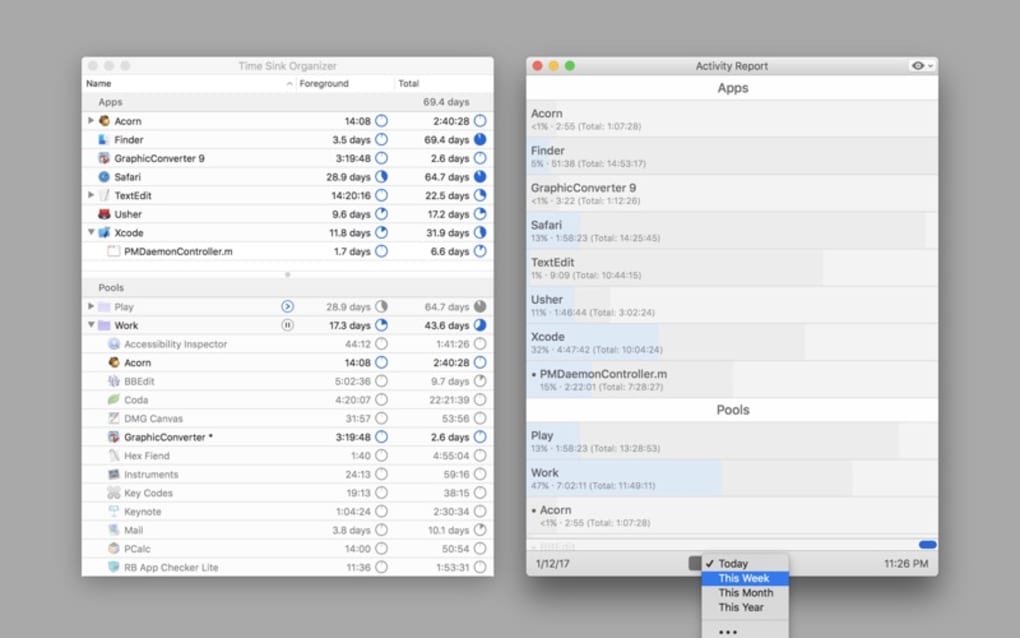
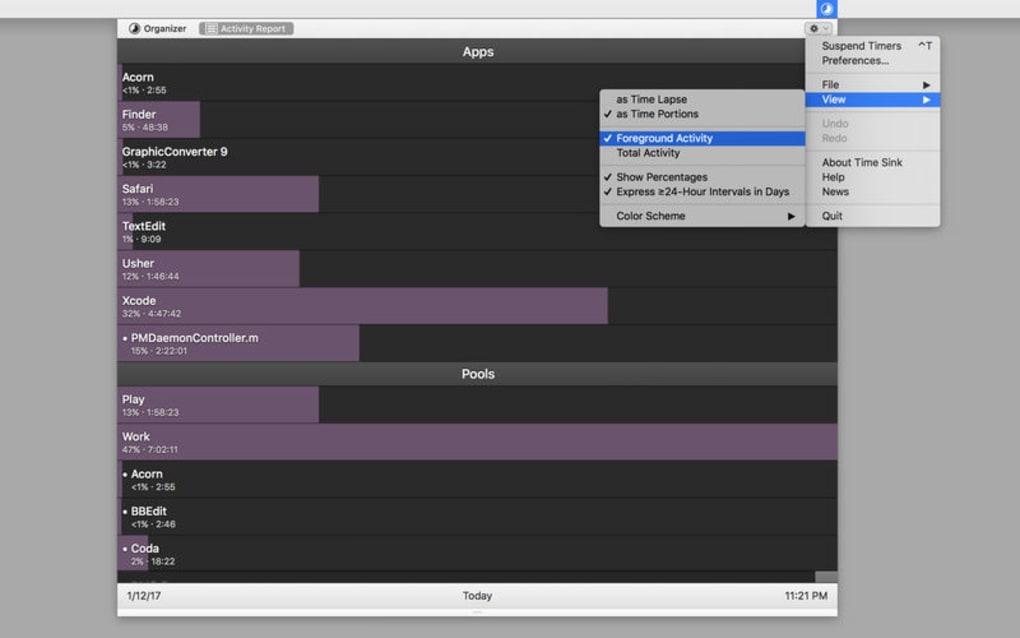
In a world where digital distractions are just a click away, knowing exactly how you spend your minutes on a Mac can feel like a super‑power. Time Sink is a lightweight yet surprisingly powerful macOS utility that records the length of every session you open – whether it’s a web browser, a creative app, a game, or a simple document. By logging the start and end times of each window, the tool builds a visual timeline that instantly reveals where you’re gaining value and where you’re simply “wasting time.” The visual representation works like a heat map: fragmented blocks indicate scattered multitasking, while large, solid blocks highlight focused work.
This immediate feedback helps you develop better habits, cut down on aimless browsing, and allocate more time to high‑impact tasks. Time Sink is especially useful for freelancers, students, and anyone who wants to reclaim lost hours without installing a massive suite of productivity software. The app runs quietly in the background, consumes minimal resources, and respects your privacy by storing data locally.
If you’ve ever wondered why the day seems to disappear while you’re jumping from one app to another, Time Sink gives you the data you need to make informed changes.
Key Features That Set Time Sink Apart
- Automatic Session Tracking – No manual start/stop required; the app detects when you open or close a window and records the exact duration.
- Visual Timeline Dashboard – Color‑coded blocks represent each application’s usage, making patterns instantly recognizable.
- Customizable Filters – Exclude specific apps (e.g., system utilities) or focus on a particular category such as “productivity” or “entertainment.”
- Exportable CSV Reports – Download raw data for deeper analysis in Excel or Google Sheets.
- Privacy‑First Architecture – All logs stay on your local machine; no cloud sync, no data sharing.
- Lightweight Resource Footprint – Uses less than 5 MB of RAM and negligible CPU, ensuring your Mac stays fast.
- Daily, Weekly, Monthly Summaries – Switch between timeframes with a single click to see short‑term spikes or long‑term trends.
- Dark Mode Compatibility – Seamlessly blends with macOS’s system theme for a consistent look.
These features combine to give you a holistic view of your digital habits without overwhelming you with complex settings. The automatic tracking removes friction, while the visual dashboard provides an at‑a‑glance summary that even non‑technical users can interpret. For power users, the CSV export opens the door to custom analytics, enabling you to correlate time spent with productivity metrics like completed tasks or billable hours. Because Time Sink respects privacy, you can feel confident that sensitive work data never leaves your device.
Installation, Usage & Compatibility – Getting Started in Minutes
Step‑by‑Step Installation Guide
- Visit the official Time Sink website and click the Download for macOS button.
- The
.dmgfile will appear in your Downloads folder. Double‑click to open it. - Drag the Time Sink icon into the
/Applicationsfolder. - Launch the app; macOS may prompt you to confirm that you trust the developer. Click “Open.”
- During the first launch, grant the app Screen Recording permission in System Settings → Privacy & Security → Screen Recording. This permission is required for the app to detect active windows.
- After permission is granted, Time Sink will start logging automatically.
How to Use the Dashboard Effectively
Once running, you’ll notice a small menu bar icon. Clicking it opens the dashboard where you can switch between Day, Week, and Month views. Hover over any block to see a tooltip with the exact application name and duration.
Use the filter dropdown to hide utilities like “Finder” or “Spotlight.” If you want a deeper dive, click the Export CSV button at the bottom of the window. The exported file includes columns for Application, Start Time, End Time, and Duration (seconds). Open it in your favorite spreadsheet program to create pivot tables or charts that align with personal goals, such as “Reduce social media time by 20 %.”
Compatibility Details
Supported macOS Versions: 10.15 (Catalina) and later, including macOS 11 (Big Sur), macOS 12 (Monterey), and macOS 13 (Ventura). The app is built for both Intel‑based and Apple Silicon (M1/M2) Macs, delivering native performance on both architectures. There is no Windows, Android, or iOS version at this time, but the developers have hinted at a cross‑platform future.
Pros, Cons & Frequently Asked Questions
Pros
- Zero‑cost, fully functional free version.
- Instant visual feedback without complex setup.
- Low system impact – ideal for older Macs.
- Data stays on device, ensuring privacy.
- Exportable reports for advanced analysis.
Cons
- No built‑in goal‑setting or alert system (you must interpret data manually).
- Lacks mobile companion apps for iOS/Android.
- Only macOS support – Windows users need alternative tools.
FAQ – Your Top Questions Answered
Does Time Sink collect any personal data?
No. All usage logs are stored locally on your Mac. The app does not send any information to external servers unless you manually export the CSV file.Can I exclude specific applications from being tracked?
Yes. In the dashboard’s filter menu you can add apps to an exclusion list, preventing them from appearing in the visual timeline.Is Time Sink compatible with Apple Silicon Macs?
Absolutely. The app runs natively on both Intel and Apple Silicon (M1/M2) machines, providing optimal performance on all supported macOS versions.How much RAM does Time Sink consume while running?
Typically under 5 MB of RAM, with occasional spikes of less than 1 % CPU during window detection. It’s designed to stay out of the way.Can I schedule automatic daily reports?
The free version does not include scheduling. However, you can set a macOS automation (via Automator or Shortcuts) to open the app and export the CSV at a chosen time.Structured Review Object
Time Sink delivers exactly what its name promises – a clear picture of where your Mac time disappears. The automatic tracking and intuitive visual dashboard make it a must‑have for anyone looking to boost productivity without investing in expensive suites. While it could benefit from built‑in alerts, the privacy‑first approach and zero‑cost model outweigh the minor shortcomings.
Conclusion – Take Control of Your Mac Time Today
Time is the one resource you can never get back, and Time Sink gives you the insight needed to protect it. By automatically logging every window, turning raw numbers into vivid blocks, and allowing you to export data for deeper analysis, the app bridges the gap between curiosity and actionable change. Whether you’re a freelancer trying to bill hours accurately, a student aiming to cut down on late‑night gaming, or simply a Mac enthusiast who loves data, this free tool offers a straightforward, privacy‑respectful solution. Download Time Sink now, let it run in the background, and watch the visual timeline reveal the hidden habits that consume your day. With a few clicks you’ll be equipped to set realistic goals, eliminate unnecessary distractions, and ultimately reclaim valuable hours for the projects and people that matter most.







